
TABLE OF CONTENTS
- Introduction
- How to Access the Reports
- Conditions
- Exceptions
- Recall Month - All
- Recall Month - Chosen
- Review Before
- Additional Support
Introduction
The Plan stage allows practices to look ahead and plan how annual reviews will be delivered, by understanding their patient population, workforce, and clinic setup. This stage is typically completed by senior practice management and administration teams to support clinic planning, staff allocation, and recall scheduling.
How to Access the Reports
- Go to Population Reporting.
- Expand the Ardens Searches folder.
- Select LTC Reviews - QOF + IIF or LTC Reviews - QOF + IIF + Best Practice > Annual Review > Plan.
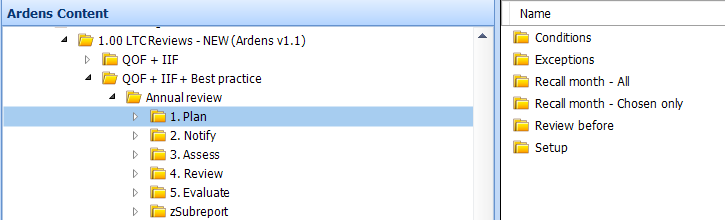
Conditions
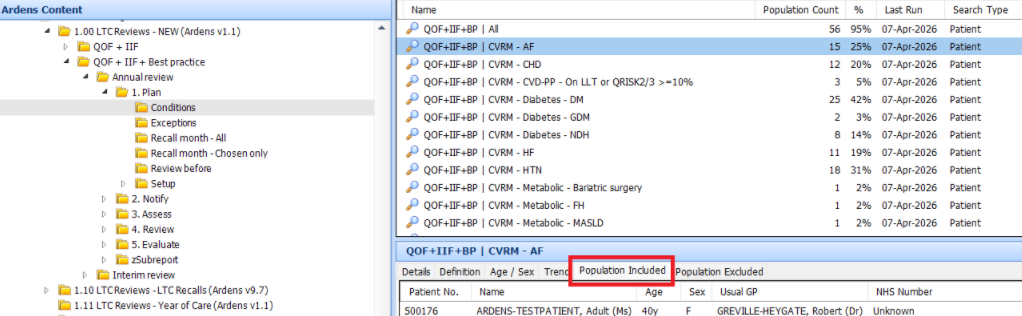
These information reports provide a breakdown of patients on each condition register. This will help you to understand the size of each condition cohort and estimate the number of reviews required. Use these reports to allocate resources and plan the clinic set-up
- Right-click on the Conditions folder and click Run.
- The results will be categorised by condition group and split further by individual conditions.
- To view the list of patients on the registers, click the Population Included tab.
Exceptions
This information report identifies patients who have been manually excluded from the LTC Recall System for the current fiscal year, by applying the Chronic disease - default from follow-up (1750559008) code. These patients will not appear in the invite reports. Use this report to view which patients have been excluded and ensure that this remains appropriate.
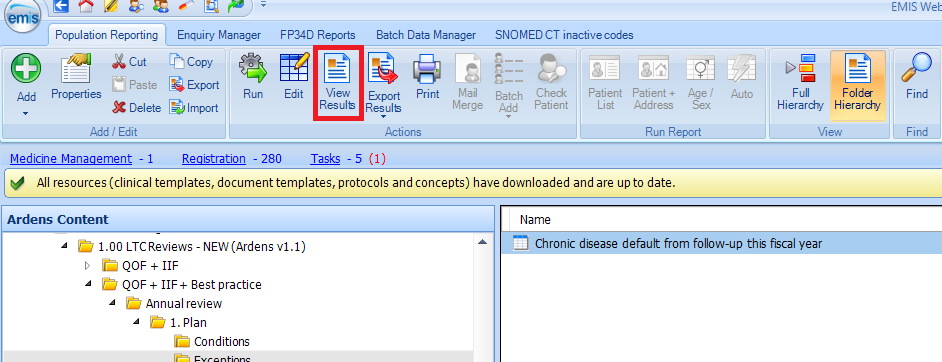
- Right-click on the Exceptions folder and click Run.
- Once the report has run, click on the View Results option on the EMIS ribbon to view the report.
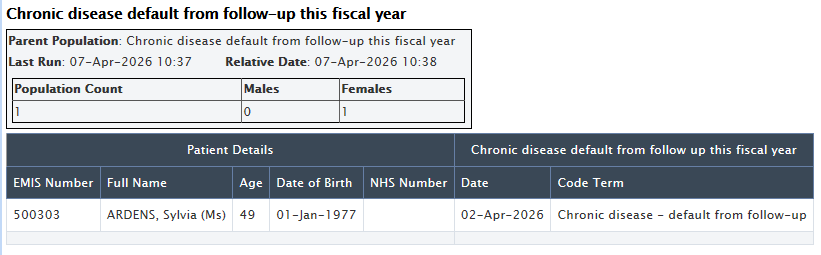
- The report will provide details of the patients and when the code was applied to the record.
- Review the patient notes and decide whether the code should remain in place or be removed to allow the patient to be included in the invite reports.
Recall Month - All
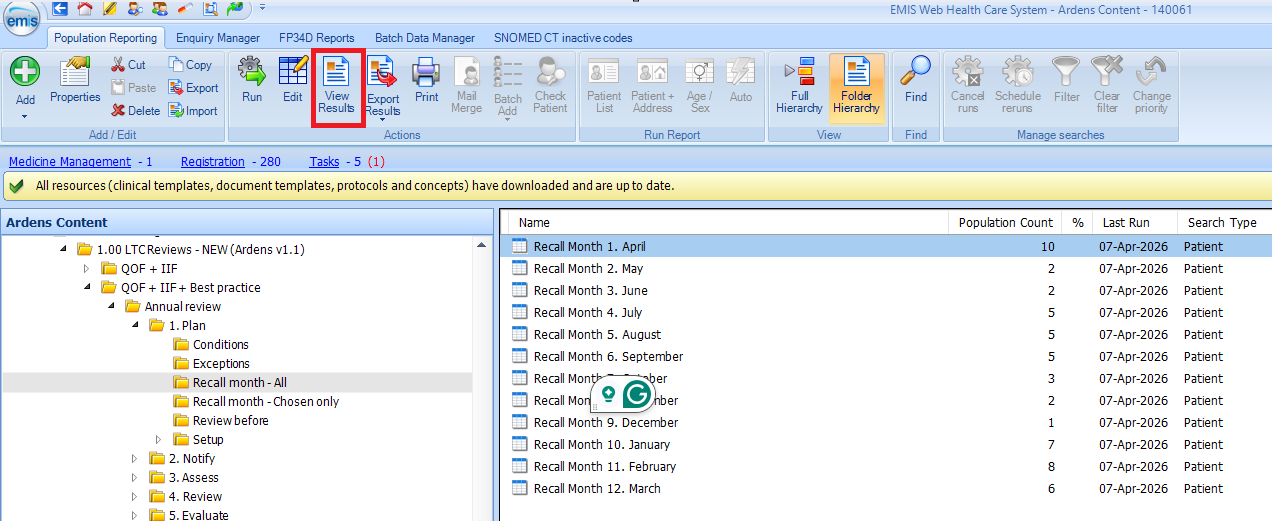
These information reports show the estimated number of patients scheduled for recall in each month. This helps to anticipate busier and quieter periods, plan appointment availability across the year, and schedule a plan on how invites will be sent throughout the year.
The reports will include:
Recall Month – All: patients due for recall in their usual birthday month
Recall Month – Chosen Only: patients who are recalled in a different month from their birthday month.
- Right-click on the Recall Month - All folder and select Run.
- The results will be broken down by month.
- To view the list of patients, select the report and click View Results on the EMIS ribbon.
Recall Month - Chosen
These information reports show the number of patients to be recalled in a different month from their birthday. This could be due to a number of reasons, such as university students being seen in term time, partners being recalled at the same time, or the patient spending part of the year abroad.
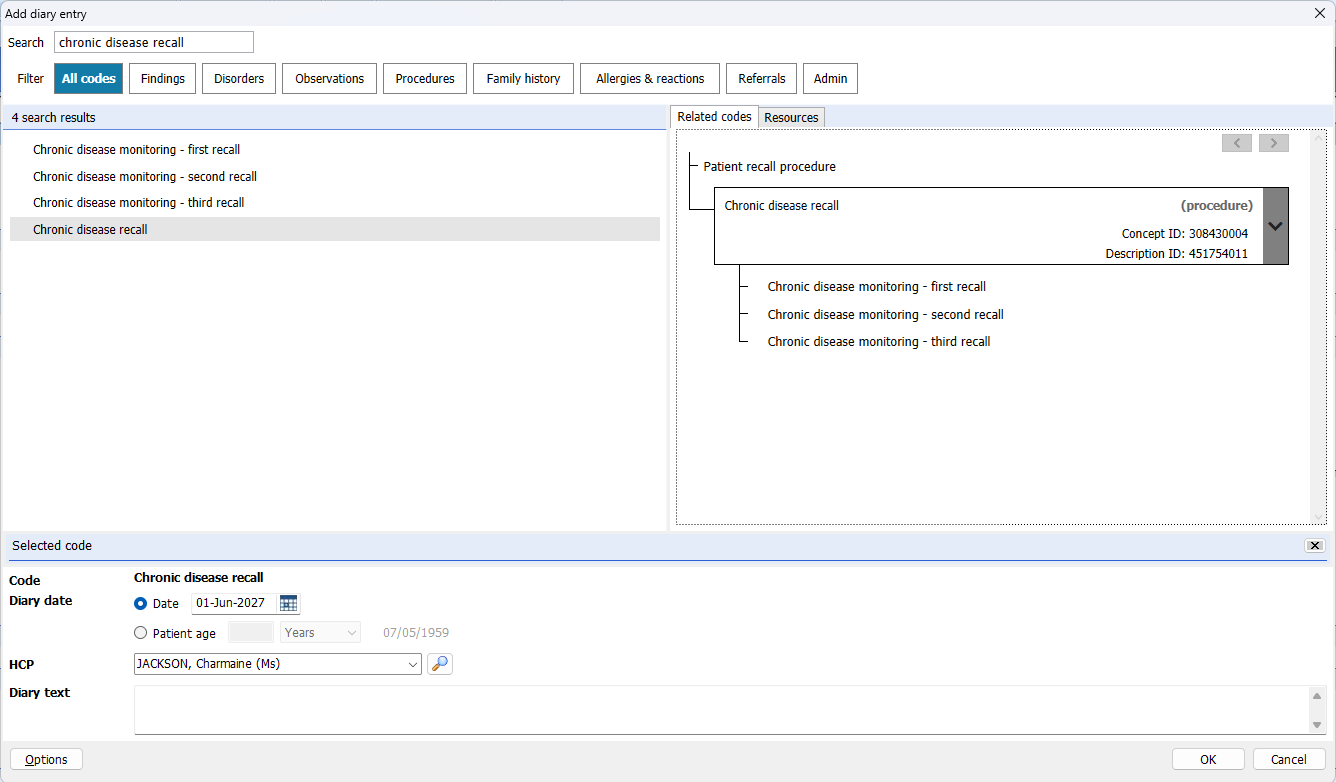
To add a chosen month:
- Access the patient's record.
- Add a diary entry of chronic disease recall.
- Select the alternative month the patient is to be called in (choosing any date or future year).
- Click OK. The patient will be recalled in the month chosen and not their birthday. This will remain permanent, to revert back to their birthday, delete the entry.
Review Before
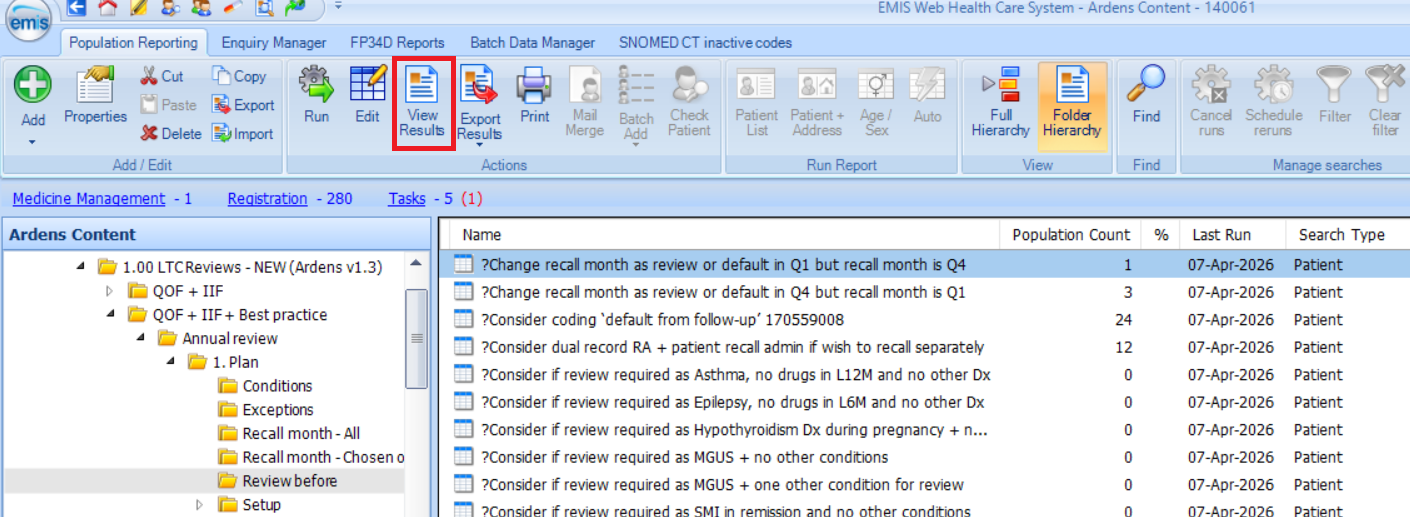
These reports help practices identify patients whose recall status may need to be checked before invitations are sent.
- ?Change recall month as review or default in Q1 but recall month is Q4: Patients' recall month is January, February or March, but have been reviewed in quarter 4. Consider inviting patients sooner to avoid them going up to 23 months without an annual review.
- ?Change recall month as review or default in Q4 but recall month is Q1: Patients' recall month is April, May or June, but they been reviewed in quarter 1. Consider inviting the patient later so they are not called in too soon.
- ?Consider coding 'default from follow-up': For patients with reasonable adjustments, those on the End of Life register, or those with a learning disability or dementia, who may be managed through alternative pathways or require a different approach to care. If you wish to remove these patients from recall for the current fiscal year, add the code ‘Chronic disease – default from follow-up (170559008)’.
- ?Consider dual record RA + patient recall admin if wish to recall separately: These patients have been coded with a reasonable adjustment code. If you wish to manage patients with a reasonable adjustment separately from your standard invites, the patients must also be coded with 'patient recall admin (714311000000108)'.
- ?Consider if review required...: These reports refer to best practice conditions. Decide if you wish for these patients to be called in. If you wish to remove these patients from recall for the current fiscal year, add the code ‘Chronic disease – default from follow-up (170559008)’.
- ?Prioritise as initial assessment last year but review not completed: For patients that have attended an initial assessment last fiscal year but not have a review completed. Decide if you wish to recall these patients sooner.
- ?Prioritise as invite last year but no review or default: For patients that were invited last year but did not attend an initial assessment or a review. Decide if you wish to recall these patients sooner.
- ?Review as default last year + no review or default this year: These patients were removed from the recall system last fiscal year and have not had a review for the current fiscal year. Decide if these patients need to be removed again this year or recall sooner for a review.
- ?Review as possible new dx or reg as no invite sent last year or this year: Patients that have recently been diagnosed with a new condition or newly registered to the practice. Decide if and when you wish to recall the patients.
- Right-click on the Review before report and select Run.
- Once the report has run, click on the View Results option on the EMIS ribbon to view the report and details of the patients.
Additional Support
To further your understanding of the LTC resources and how to make the most of Ardens product:
- Explore more helpful LTC Support Articles.
- Book training for your GP Practice, PCN or ICB.
If you require any further assistance on the process above, please contact Ardens support on: