
TABLE OF CONTENTS
Introduction
This support article outlines how EMIS practices edit the Ardens "Seasonal Vaccinations – COVID-19 protocol. This protocol is designed to help healthcare professionals accurately record COVID vaccination activity as part of the 2026 COVID-19 Spring booster Programme.
Copy Protocol
1 - Copy Protocol
Before editing the protocol, you must first create a local copy.
To do this, access the Resource Publisher module (providing you have the relevant permissions) and navigate to the Shared folders > Ardens National Content – New >Vaccinations folder.
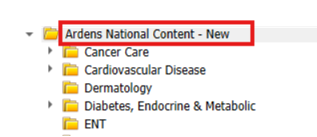
Right-click on the "Seasonal Vaccinations COVID-19’’ protocol and select Copy.
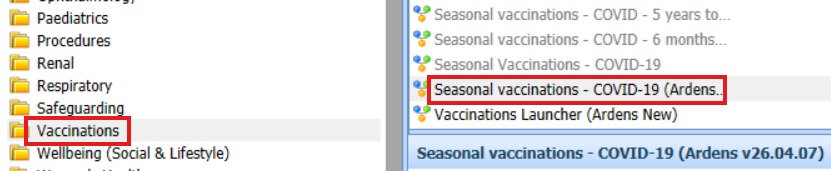
Once copied, navigate to one of your appropriate practice folder locations and select Paste. The protocol must then be renamed. To do this, right click on the copied version of the protocol and select Properties. Within the following field, enter a new name for the protocol:
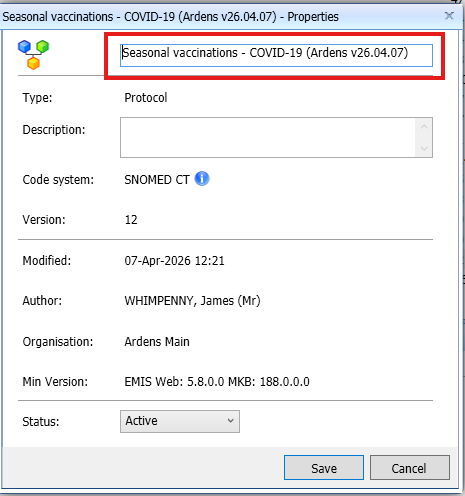
Then select Save.
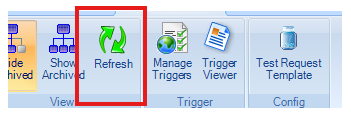
We then advise to refresh resource publisher by selecting the Refresh button on the ribbon:
⚠️ Please note: After copying the protocol, ensure you deactivate the COVID-19 protocol located in the Ardens folder.
Edit Protocol
2 - Edit Protocol
To record vaccine administration using the protocol, you will need to add your vaccine batch numbers and expiry dates.
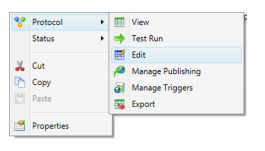
Navigate to the local copy of the protocol that you have now saved. Right-click and select Protocol > Edit:
This will open the protocol in edit mode. Use the scroll bar to navigate to the right-hand column of the screen, which is labelled at the top as ‘EDIT BATCH NUMBER EXPIRY DATE...’.
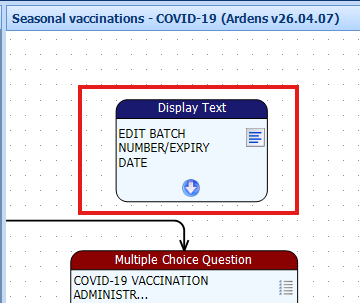
This column contains "Multiple Choice Question" boxes for each vaccine type, with associated "Add Coded Data" boxes. You will need to edit each box to enter the relevant batch numbers and expiry dates for your vaccines.
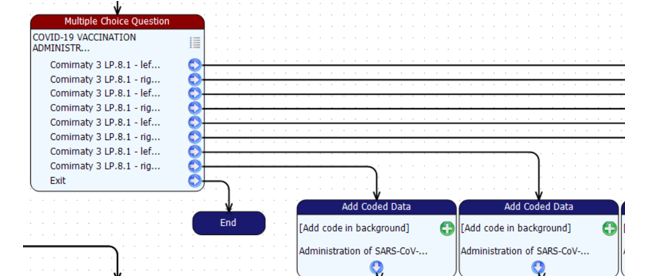
Double-click on the required Multiple Choice Question box, e.g., Comimaty 3, to edit. Select the first option and click Edit. Replace the X with details of the batch number and vaccine.
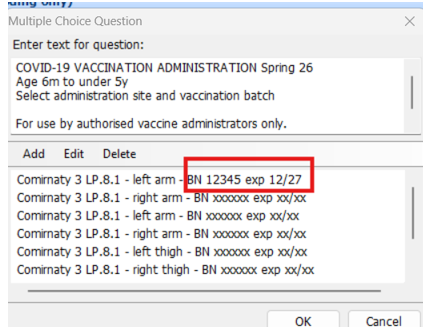
Repeat this for each option with the Multiple Choice Question box, and click OK once complete.
Next, edit the corresponding 'Add Coded Data' boxes by tracing the line from each multiple choice option to its associated data entry field.
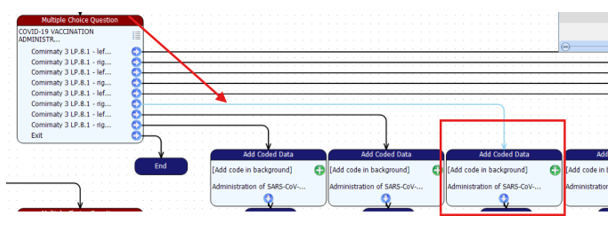
Double-click to open. Using the fields provided, enter the Manufacturer, Expiry Date, Batch Number, and GMS information. Once finished, click OK.
If all the qualifier fields are not initially available, you will need to click on 'Add qualifier' and select each in turn as required:
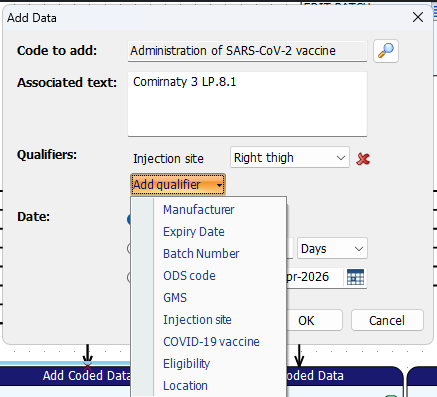
⚠️ Please note: The Add Coded Data MUST be edited to include the vaccine details in the patient record once the protocol has been saved.
⚠️ Please note: We advise NOT to remove any extra batch numbers or vaccine types that are not required for use by your practice. We have provided two left arm and right arm options to enable additional batch numbers to be recorded if required (as well as two left thigh and right thigh for the 6m – 5y cohort).
Complete this step for each vaccine type.
Click Save and Close once complete.
Users may occasionally encounter the following warning message:
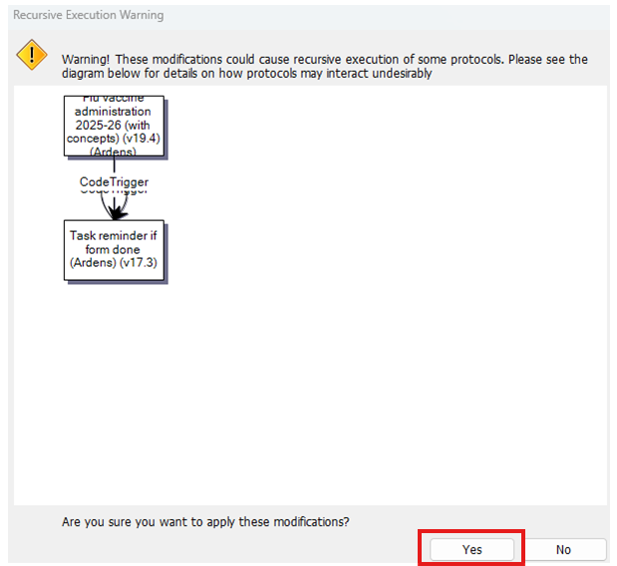
This is EMIS flagging the protocol as potentially causing an endless loop. However, we have included a safeguard to prevent this, so it is safe for you to select 'Yes'.
Once saved, each individual user will need to add the protocol to their F12 key, please refer to this support article on how to do this.
If you are co-administering RSV and COVID vaccinations and you are using the Ardens COVID-19 protocol, you must update your copied (and renamed) version of this COVID-19 vaccination protocol so that it references your copied RSV protocol.
To do this, right-click and select Protocol > Edit on your saved local copy of the COVID-19 protocol. Use the scroll bar to move to the bottom far right of the protocol and locate the final node.
Double-click the 'Launch Protocol' node and in the protocol picker box enter and select the name of your copied version of the RSV protocol.
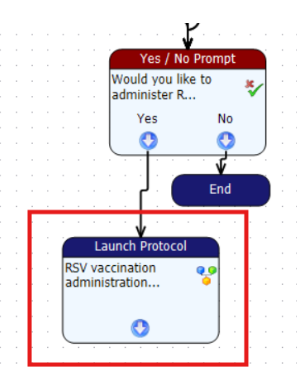
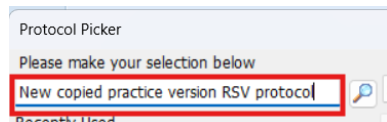
Click Save and Close once completed.
If you require any further assistance on the process above, please contact Ardens support on: