
TABLE OF CONTENTS
Introduction
This article explains how to implement the Ardens LTC Annual Recall System for EMIS practices.
Before you begin, we recommend watching the walkthrough webinar or completing training with one of our Training Specialists to ensure you are familiar with the process.
Implementation
If you have been using our previous LTC Recall System (System A, System B, or System C), follow the steps below to transition to the new system.
1. Decide on a switch-over date
Agree on a clear switch-over date for moving to the new system. This should allow enough time for all staff involved to complete training. The previous system will be supported up to April 2027; however, we recommend plenty of time before this.
2. Assign a lead to action setup reports
Nominate a staff member or team to work through the setup reports (see the Action Setup Reports section). They will be responsible for ensuring patients are correctly coded so they appear in the new system reports. This is an important step in the process.
3. Ensure all staff have completed their training
Before the switch-over date, ensure all staff members (admin, healthcare assistants, nurses and GPs) have completed their training. This will ensure each team member understands their role within the LTC pathway and how to use the resources effectively.
4. Admin staff to start using the notify reports
From the agreed switch-over date, admin teams should begin using the Ardens ‘Notify’ reports to identify and invite patients for their LTC reviews. This replaces previous invitation processes and ensures a consistent, structured approach to patient communication.
5. Clinicians to start using the LTC recall templates
From the switch-over date, clinicians (GPs, Nurses and HCAs) should begin using the Ardens LTC recall templates to complete reviews. These templates help coordinate care for patients with multiple conditions and ensure all reviews are accurately recorded in the system. Ensure each clinician has added the 'Ardens LTC Annual Review Launcher' to their F12 key to easily access the templates.
Action Setup Reports
To be completed by a nominated staff member or team:
Accessing the Reports
- Go to Population Reporting.
- Open the Ardens Searches folder.
- Select 1.00 Ardens LTC Reviews.
- Choose either QOF + IIF or QOF + IIF + Best Practice (depending on your practice setup).
- Select Annual Review.
- Open 1.Plan
- Select Setup.
- Right-click folder and select Run.
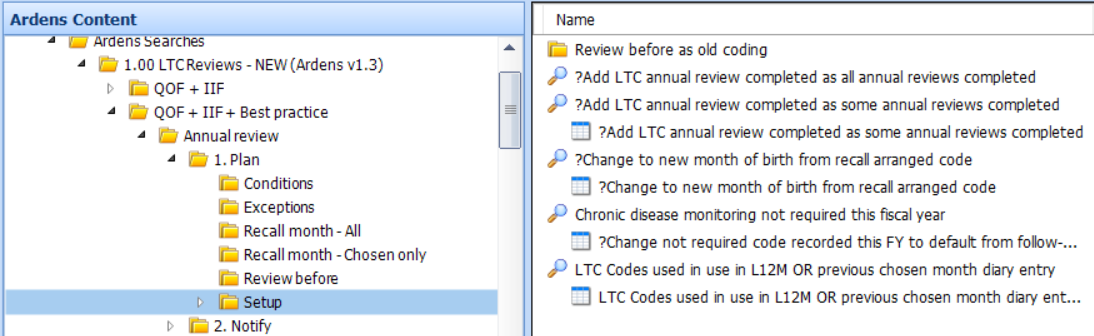
Actioning Reports
?Add LTC annual review completed as all annual reviews completed
These patients have had all individual condition review codes completed under the previous system and can safely be marked as review complete.
- Select the report and click Batch Add > Clinical Code on the EMIS ribbon.
- Click the magnifying glass and search for: Chronic disease management annual review completed (code: 888461000000107)
- Add a suitable description.
- Select the ?Add LTC annual review completed as all annual reviews completed report as the Search Population.
- Click OK.
This will apply the review completion code to all patients in the report and remove them from the Notify reports for the current fiscal year.
?Add LTC annual review completed as some annual review completed
These patients have had some, but not all, of their condition reviews completed.
- Select the report and click View Results on the EMIS ribbon.
- Review each patient to identify which elements of the review are incomplete
- Decide whether to:
- Recall the patient to complete outstanding reviews, or
- Mark the review as complete using the Ardens LTC Review template
?Change to new month of birth from recall arranged code
These patients have been coded with the previous recall arranged code and must be switched to a diary entry if the patient is to continue to be recalled in their chosen month.
- Select the report and click View Results on the EMIS ribbon.
- Check the Recall Arranged column to identify the assigned month
- For patients continuing with a chosen recall month:
- Open the patient record
- Add a diary entry: chronic disease recall
- Set the same month and a future year
- Save the entry
This ensures the patient continues to be recalled in their chosen month.
If the patient no longer requires a specific recall month and should revert to their month of birth, no action is required (unless you wish to remove the previous recall code).
Chronic disease monitoring not required this fiscal year
These patients have the Chronic disease monitoring code in their record, which is not used for the new system.
- Select the report and click View Results on the EMIS ribbon.
- Decide whether the patient should be removed from recall for this fiscal year. If so, add the code: Chronic disease – default from follow-up (1750559008)
LTC Codes used in use in L12 OR previous chosen month diary entry
These patients already have relevant LTC codes recorded, which may have been added outside of the Ardens system.
Examples include:
- Chronic disease initial assessment
- Chronic disease management annual review completed
- Chronic disease – default from follow-up
If these codes are present, patients will continue to move through the recall system as expected.
- Select the report and click View Results on the EMIS ribbon.
- Review the codes recorded for each patient
- Decide whether to:
- Keep the existing codes, or
- Replace them, depending on where the patient is in their care pathway
Additional Support
To further your understanding of the LTC resources and how to make the most of Ardens product:
- Explore more helpful Support Articles.
- Book training for your GP Practice, PCN or ICB.