
TABLE OF CONTENTS
- Introduction
- How to Access the Reports
- Invitation Workflow
- How to Send and Code 1st Invitations
- How to Send and Code 2nd Reminders
- How to Send and Code 3rd Reminders
- Chasing Outstanding Invitations
- How to Action Visit Patients
- Identifying Which Condition a Patient Has Been Invited For
- Additional Support
Introduction
The Notify stage identifies patients to be invited for an initial assessment, taking into account those who may require home visits, reasonable adjustments, or additional support due to vulnerability. This stage is typically completed by the administration team.
How to Access the Reports
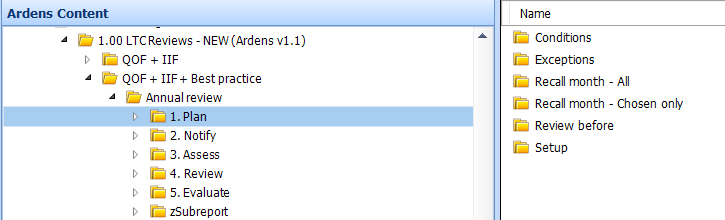
Go to Population Reporting.
Expand the Ardens Searches folder.
Select LTC Reviews - QOF + IIF or LTC Reviews - QOF + IIF + Best Practice > Annual Review > Plan.
Invitation Workflow
Invitations are sent using the Notify reports, with a generic invitation code applied to all patients who receive an invite. The invitation schedule is as follows:
- First invite: Sent before the patient’s birthday month (or chosen month).
- Second invite: A reminder to send two weeks after the first invite has been sent.
- Third invite: A reminder to send two weeks after the second invite has been sent.
Patients are automatically removed from the invite reports once an initial review or annual LTC review has been completed and coded on the relevant Ardens template.
How to Send and Code 1st Invitations
The Notify reports are broken down by the following cohorts:
- Invite - All: The total number of patients with the relevant conditions due for recall in that month, regardless of preferred contact method, age, or any recorded reasonable adjustments.
- Invites - Asthma Only: Patients who have an Asthma diagnosis and no other conditions.
- Invites - Consider method: Patients who are aged under 16, have dementia or a learning disability, are on the end-of-life register, or have a reasonable adjustment that you may wish to consider the preferred contact method.
- Invites - Excluding consider method: Patients who have no considerations and can be sent a standard invite.
To send 1st invites:
- Right-click on the relevant invite folder and select Run.
- Click Yes to the Run prompt.
- Select the recall month using the provided data parameters.
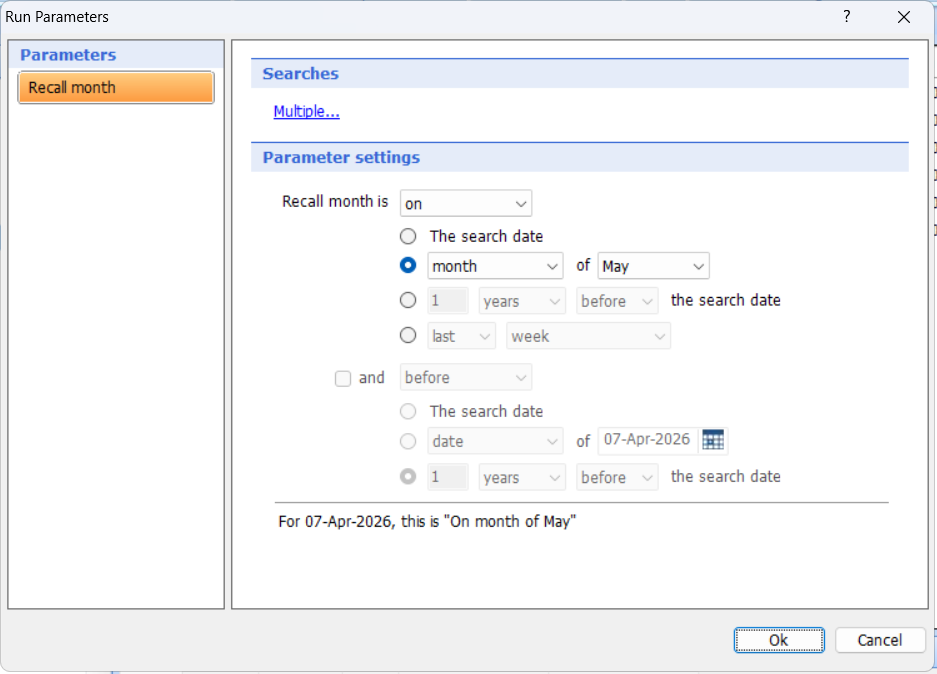
- Click OK to run the reports.
- Select the For 1st Invite - all report and click View Results on the EMIS ribbon.
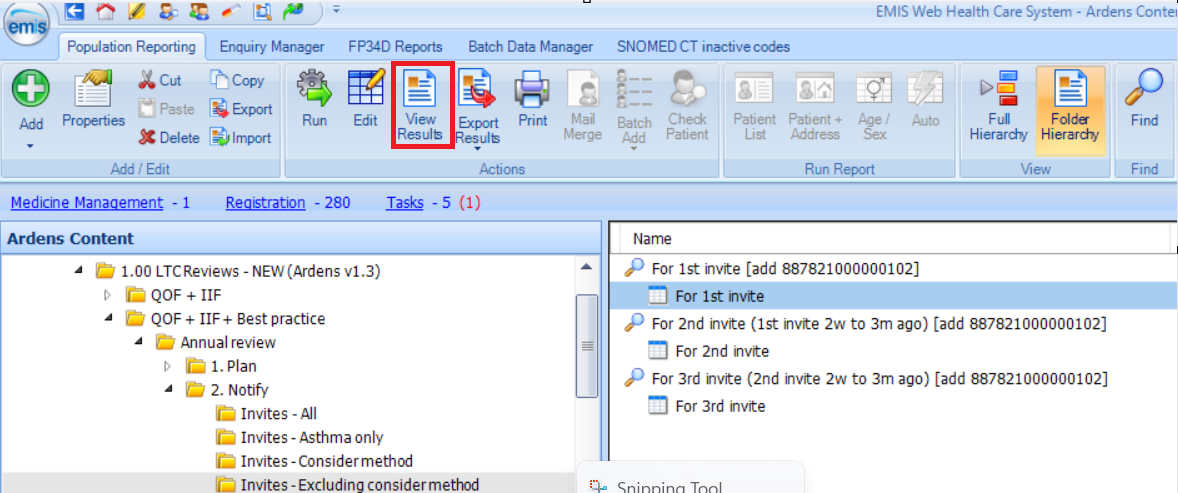
- This will provide details of the patients, their contact methods, and the condition registers they are on.
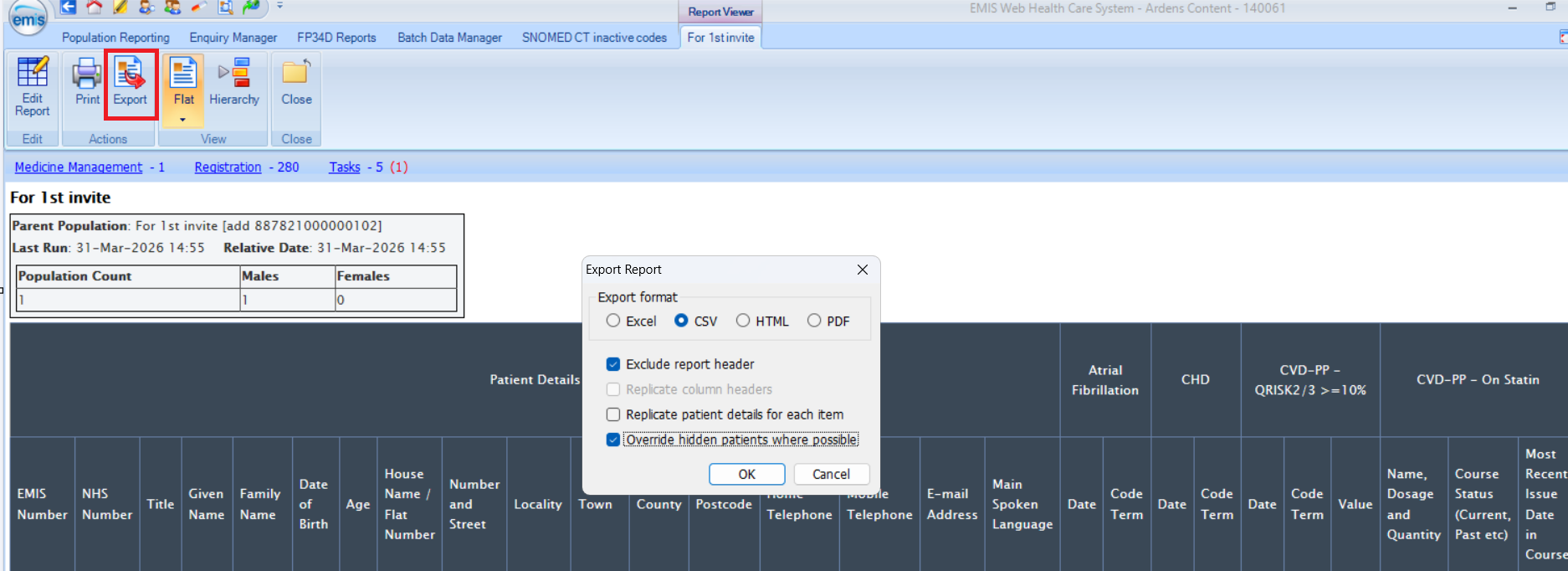
- To export the report to further filter and/or to bulk send invites via third-party messaging platforms, click on Export > CSV. For further information on exporting reports, access this support article.
To code invites:
- Once the invites have been sent, select the For 1st Invite search.

- Select the Batch Add option on the EMIS ribbon, followed by Clinical Code.
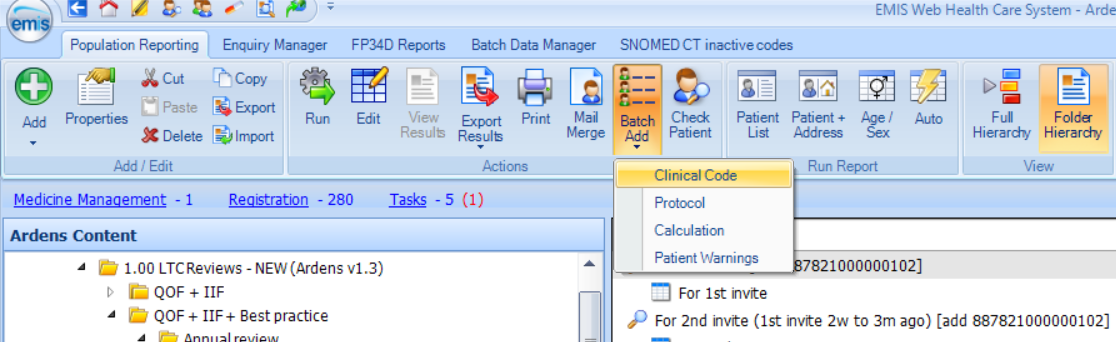
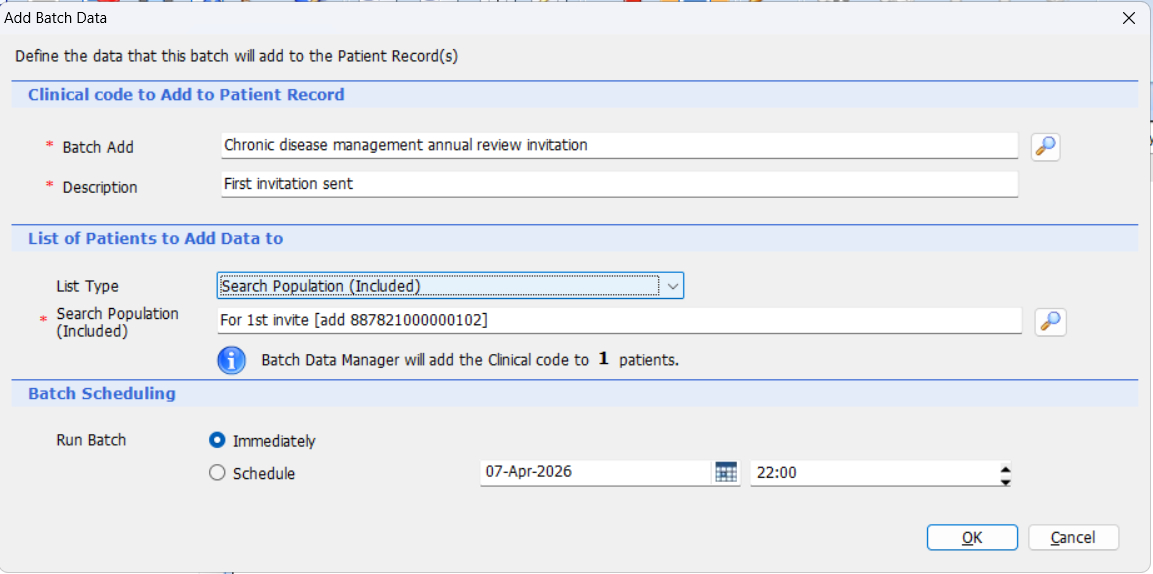
- Select the Batch Add field and search and select the Chronic disease management annual review invitation (887821000000102) generic invitation code.
- Add a Description.
- For the Search Population (Included) field, select the For 1st Invite report.
- Click OK. This will batch add the generic invitation code in the background.
How to Send and Code 2nd Reminders
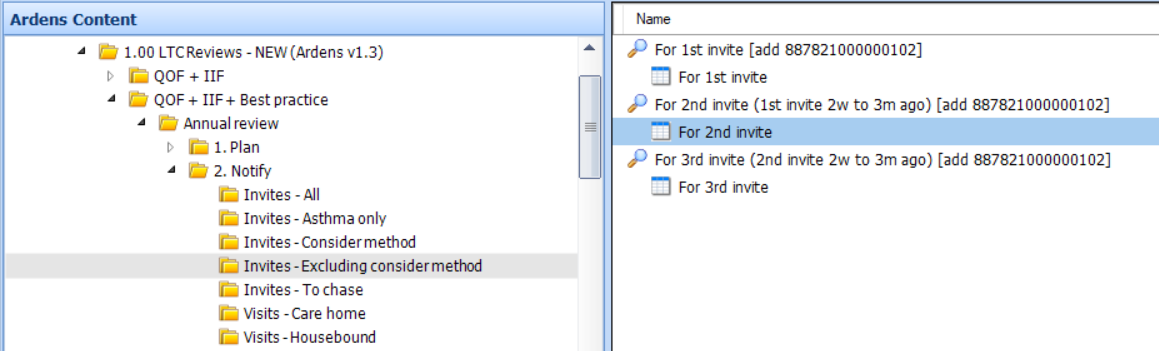
Once the patient has received a 1st invitation, if they have not attended either an initial assessment or a review, they will move to the 2nd invite reports after 2 weeks.
The process to send 2nd reminders is the same as 1st invite, with the same generic invitation code being used once sent. Patients remain in these reports for up to 3 months if no further action is taken.
How to Send and Code 3rd Reminders
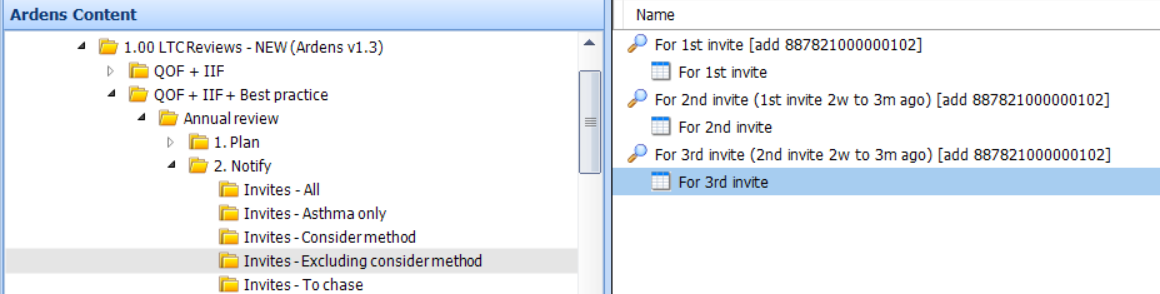
If a patient has received both a 1st and 2nd invitation and have not attended either an initial assessment or a review, they will move to the 3rd invite reports after 2 weeks.
The process to send 3rd reminders is the same as 1st and 2nd invites, with the same generic invitation code being used once sent. Patients remain in these reports for up to 3 months if no further action is taken.
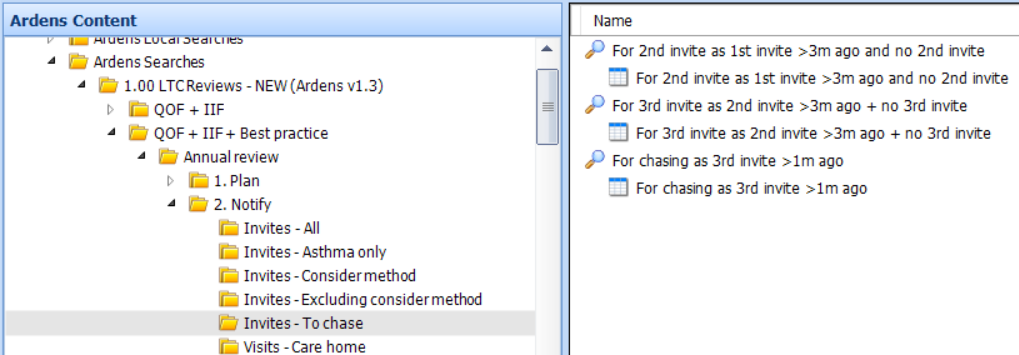
If you wish to chase patients that have not responded to the 3rd invite, reports are available in the Invite - To chase folder.
Chasing Outstanding Invitations
The Invites - To chase reports act as a safety net to help practices identify patients who have been invited for their review but have not attended.
The reports highlight patients who:
- had a 1st invite more than 3 months ago but no 2nd invite recorded
- had a 2nd invite more than 3 months ago but no 3rd invite recorded
- had a 3rd invite more than 1 month ago and still have no review recorded
Practices can review these patients and decide whether further contact is appropriate, such as sending another reminder or arranging an appointment.
How to Action Visit Patients
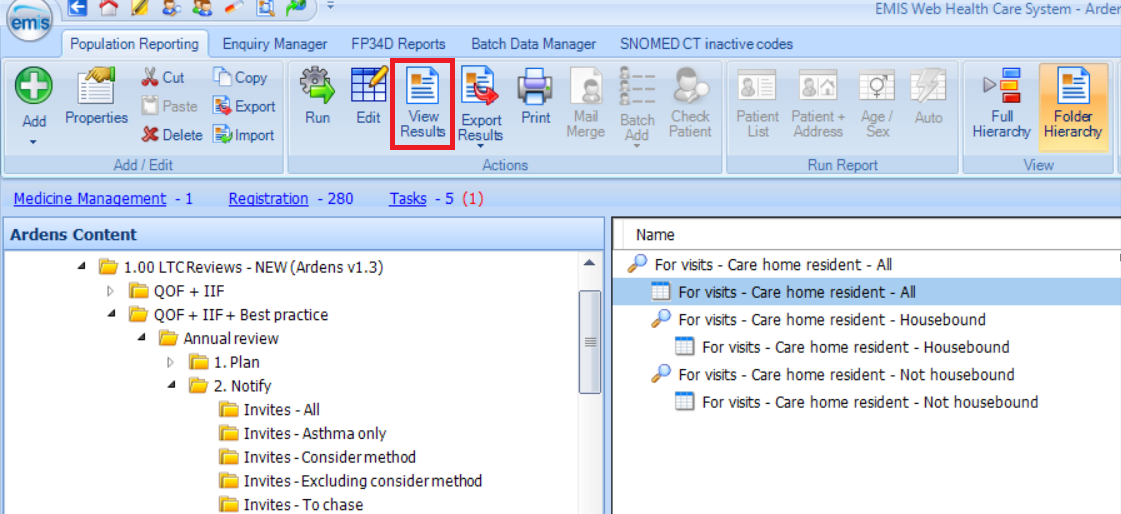
The Visits reports help practices identify patients who are coded as Care Home Residents and/or Housebound. These patients are managed separately from the standard LTC invitation process, as they typically require a home or care home visit rather than a standard invitation.
The reports allow practices to organise and plan visits, ensuring these patients still receive their annual LTC reviews in a timely manner.
⚠️ Please note: Patients included in the Visits reports are excluded from the other invite reports described earlier in this article.
- Right-click on the relevant Visits folder and select Run.
- Click Yes to the Run prompt.
- Select the relevant report and click View Results to view and action the list of patients.
Identifying Which Condition a Patient Has Been Invited For
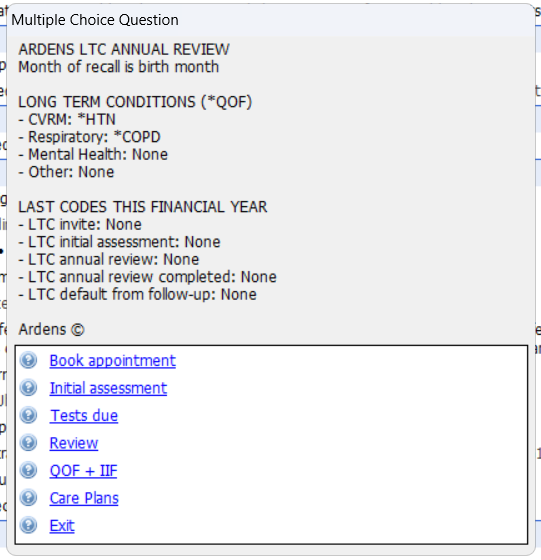
Once a patient has received their notification and contacts the practice to book an appointment, the receptionist can easily see which condition(s) the patient has been invited for.
- Press F12 on your keyboard to launch the Ardens Launcher - LTC Annual Review protocol. Access this support article for instructions on how to add to your F12 key.
- This will display which conditions the patient has, with the option to book an appointment or view outstanding tests.
Additional Support
To further your understanding of the LTC resources and how to make the most of Ardens product:
- Explore more helpful LTC Support Articles.
- Book training for your GP Practice, PCN or ICB.
If you require any further assistance on the process above, please contact Ardens support on: