TABLE OF CONTENTS
Introduction
This article explains how to use the Ardens QOF resources to support case finding, patient recall, activity recording and achievement monitoring.
Background
The Quality and Outcomes Framework (QOF) requires GP practices to accurately identify, recall, and manage patients with long-term conditions to achieve clinical indicators, maximise income and support high-quality patient care.
How Ardens Can Help
Ardens provides a range of QOF resources to support GP practices with:
- Improving disease prevalence through case finding
- Ensuring timely completion of QOF indicators
- Monitoring performance and achievement
- Streamlining patient recall processes
How to Access the Resources
Reports
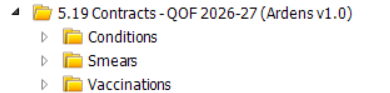
- Go to Population Reporting
- Expand the Ardens Searches Folder
- Select folder 5.19 Contracts QOF 2026-27.
Templates
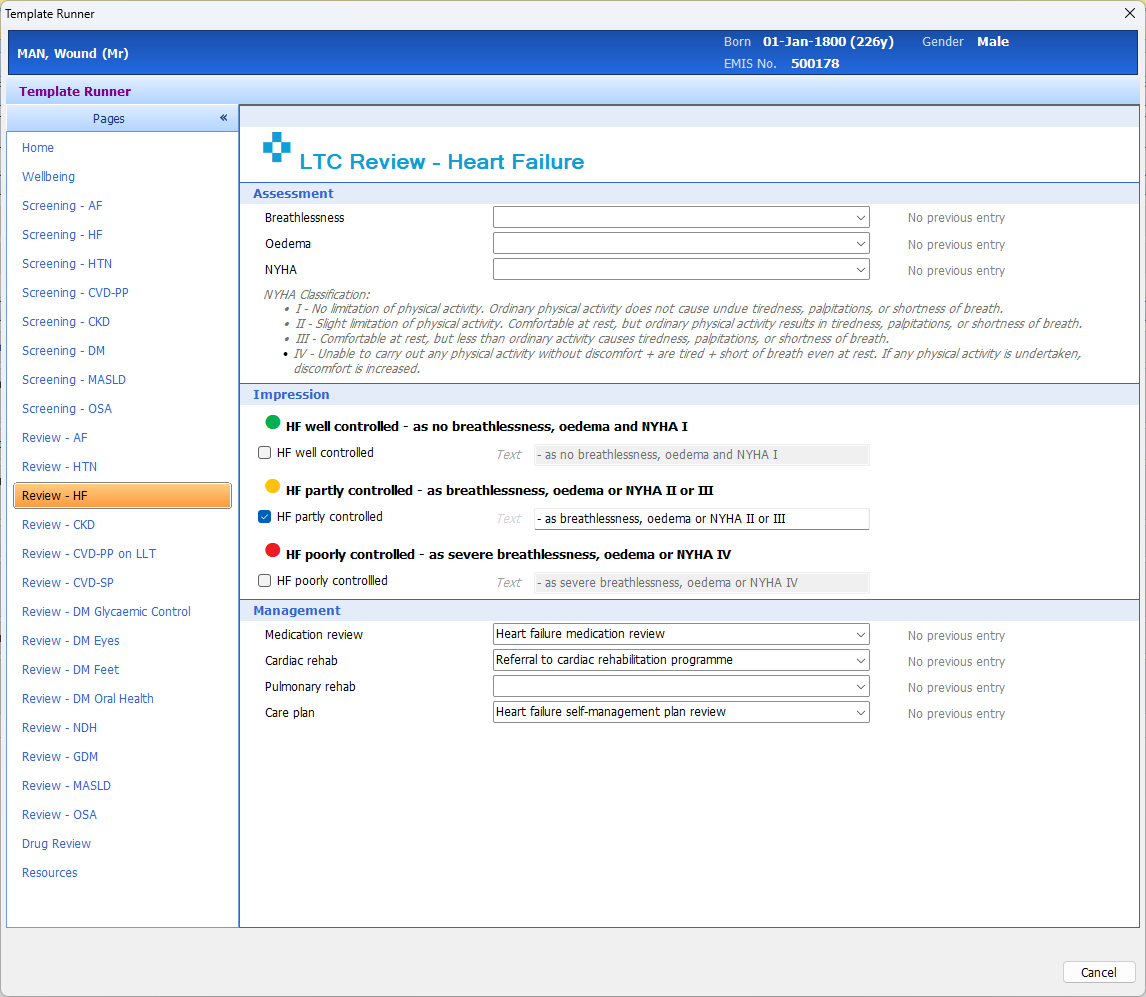
- Access the long-term condition templates via the F12 Template Launchers (Chronic Disease Template Launcher or Ardens Launcher - LTC Annual Review).
- Alternatively, open a consultation and select Run Template and search for the individual long-term condition templates.
Conditions
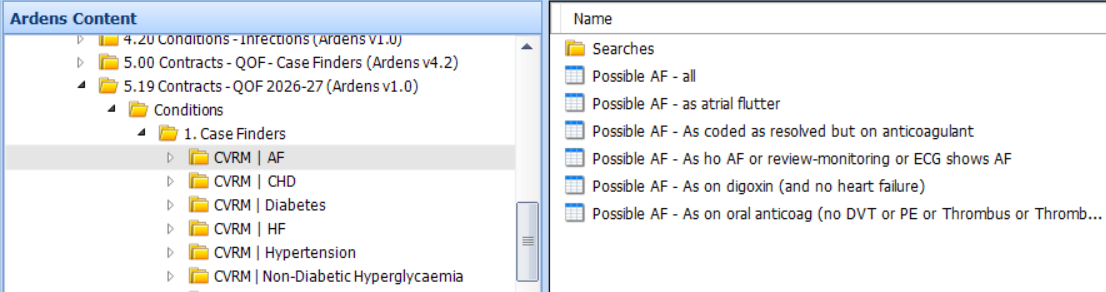
The Conditions folder contains a suite of reports to support the identification, management, and monitoring of patients with long-term conditions for QOF. These reports follow the patient pathway, from identifying uncoded patients through to tracking outstanding work, data quality issues, and overall achievement.
Case Finders
The Case Finder reports identify patients who may have a condition but are not correctly coded or mis-coded, and are therefore excluded from the QOF registers.
Examples include:
- Patients coded as resolved, but recently issued medication for the condition
- Patients with a history code and recent related activity
- Patients with investigation results suggesting a condition should be recorded
For detailed guidance on using the Case Finder reports, please refer to this support article.
Registers
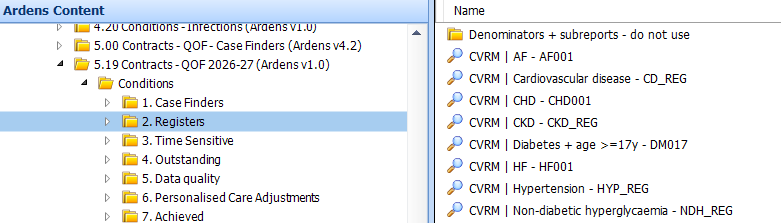
The register reports provide a summary of the number of patients recorded on each condition register. These reports are for informational purposes only and support visibility of current register sizes.
Time Sensitive
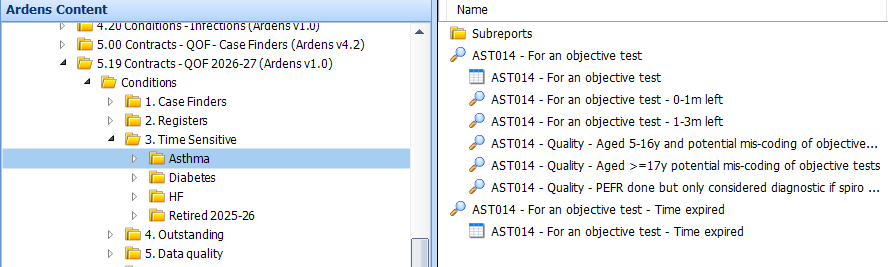
Some QOF indicators must be completed within strict timeframes. Missing these deadlines means the activity will not count towards QOF achievement.
Examples include:
- Asthma diagnosis requires an objective test 3 months before or after diagnosis.
- Diabetes structured educational referral within 9 months.
- Heart Failure diagnosis confirmation within 6 months.
For detailed guidance on using the Time Sensitive reports, please refer to this support article.
Outstanding
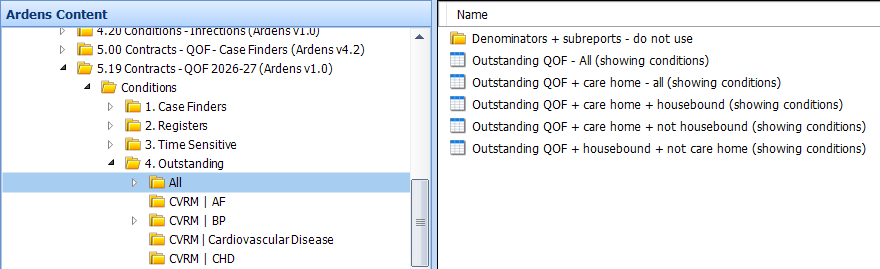
These reports identify patients with outstanding QOF activity. They are best used for monitoring progress rather than day-to-day management. To take a more proactive approach and reduce outstanding work throughout the year, practices should use the wider Ardens QOF resources, including:
Data Quality
Data quality issues can impact QOF achievement where coding is incomplete, missing, or incorrect. These reports highlight potential issues that may prevent indicators from being met.
Examples include:
- Missing codes that need to be added
- Incorrect coding that requires correction
- Coding that needs review for accuracy
- Incomplete records that require further information
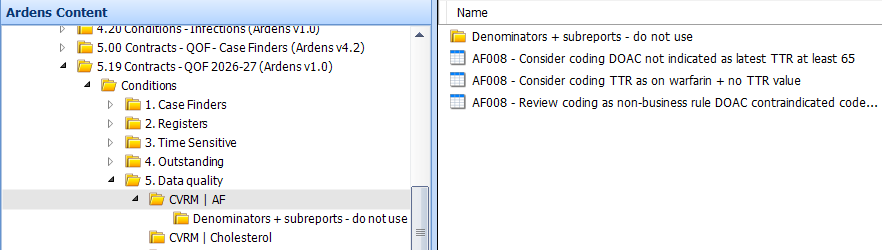
The report titles will detail what action needs to be taken. Once the report has been run, click View Results on the EMIS ribbon to review the data, access the patient record and take action accordingly.
Personalised Care Adjustments
For practices using the Ardens LTC Annual Recall System, these reports help to identify patients who have been invited using the generic invitation code but have not attended the practice for their review. Towards the end of the QOF year, these reports can be used to retrospectively add the QOF invitation code.
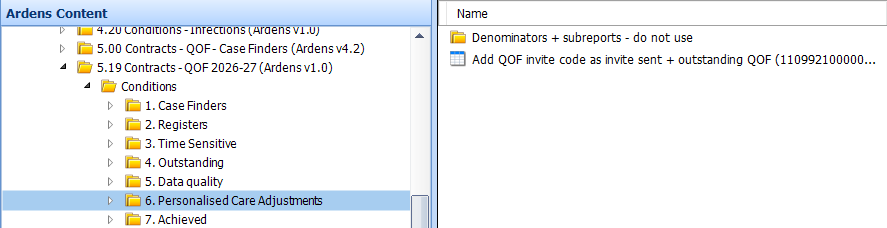
Once the report has been run, click View Results on the EMIS ribbon. The report will show the date the generic LTC invitation codes have been added.
Access the patient record and apply the appropriate QOF code on the same day as the generic LTC invitation code.
Achieved
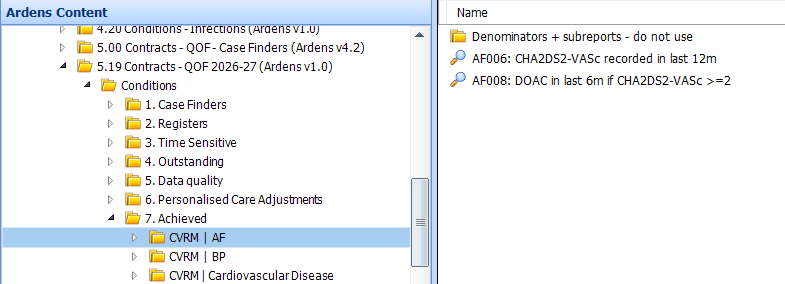
The Achieved reports can be used throughout the year to monitor QOF achievement.
Smears
The Smears folder contains reports to support the management of cervical screening activity for QOF. These reports help practices monitor eligible patients, identify outstanding screening, and ensure accurate coding for achievement.
Registers
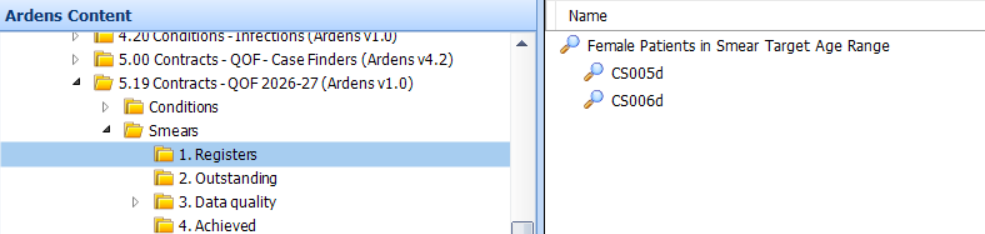
The register reports provide a summary of the number of female patients in the smear target age range. These reports are for informational purposes only and support visibility of current register sizes.
Outstanding
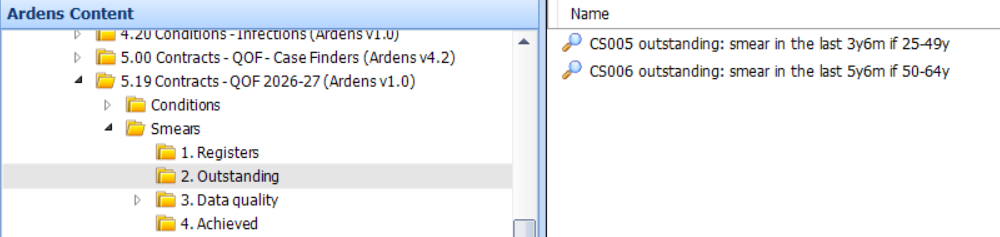
These reports identify patients with outstanding cervical screenings. Practices should encourage clinicians to use the Ardens Cervical Screening template to record activity of the screening.
Data Quality
These reports are used to identify patients who may have had a smear or hysterectomy recorded; however, the code is not a QOF-acceptable code.
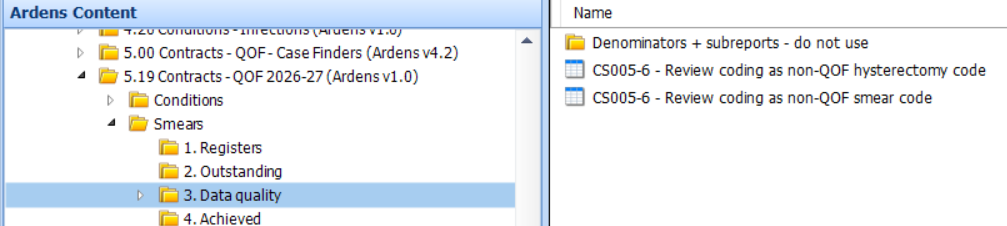
Once the reports have been run, click on View Results on the EMIS ribbon. The reports will show the latest non-QOF code used, along with the date applied. Access the patient's record and amend accordingly, referring to the Ardens Cervical Screening template for guidance on coding if needed. Ensure the updated code is added on the original date.
Achieved
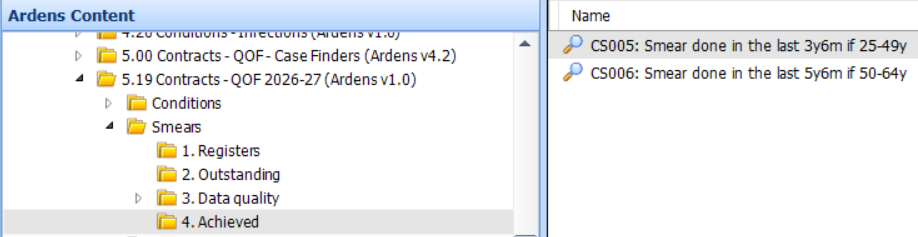
The Achieved reports can be used to monitor smears done in the target timeframes.
Vaccinations
The Vaccinations folder contains reports to support the identification and monitoring of patients eligible for QOF vaccination indicators. These reports help track outstanding activity, highlight data quality issues, and monitor overall achievement.
Registers
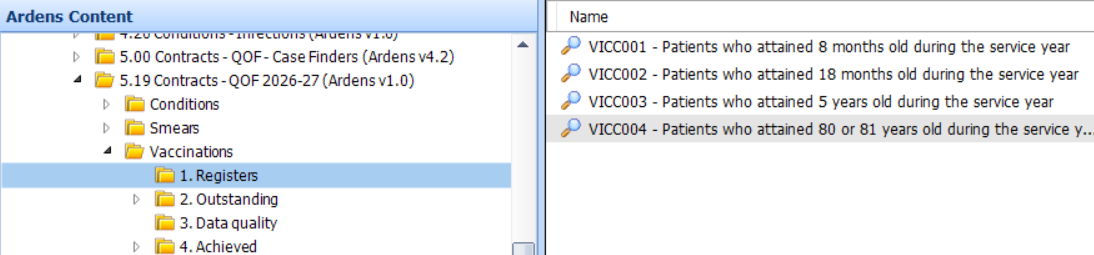
The register reports provide a summary of the number of patients to reach the vaccination target age during the service year. These reports are for informational purposes only and support visibility of current register sizes.
Outstanding
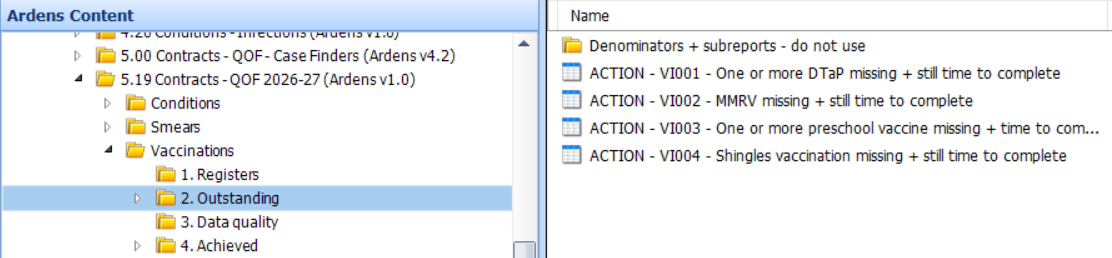
These reports identify patients with outstanding vaccinations. Similar to the condition outstanding reports, they are best used for monitoring progress rather than day-to-day management. To take a more proactive approach and reduce outstanding work throughout the year, practices should use the wider Ardens vaccination resources, including:
- Childhood Vaccinations
- Shingles
Data Quality
These reports highlight potential issues that may prevent indicators from being met, due to missing or incorrect coding in the patient record.
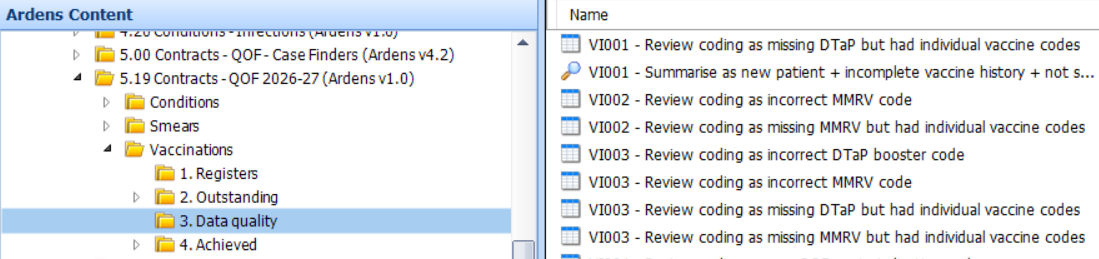
The report titles will detail what action needs to be taken. Once the report has been run, click View Results on the EMIS ribbon to review the data, access the patient record and take action accordingly.
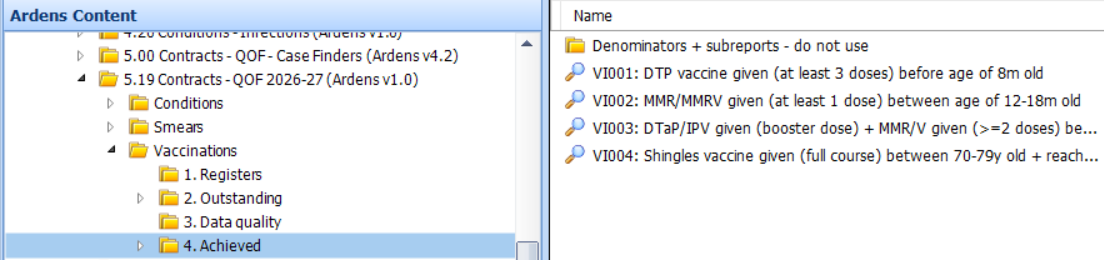
Achieved
The Achieved reports can be used to monitor QOF vaccination targets in the fiscal year.
Overall Achievement
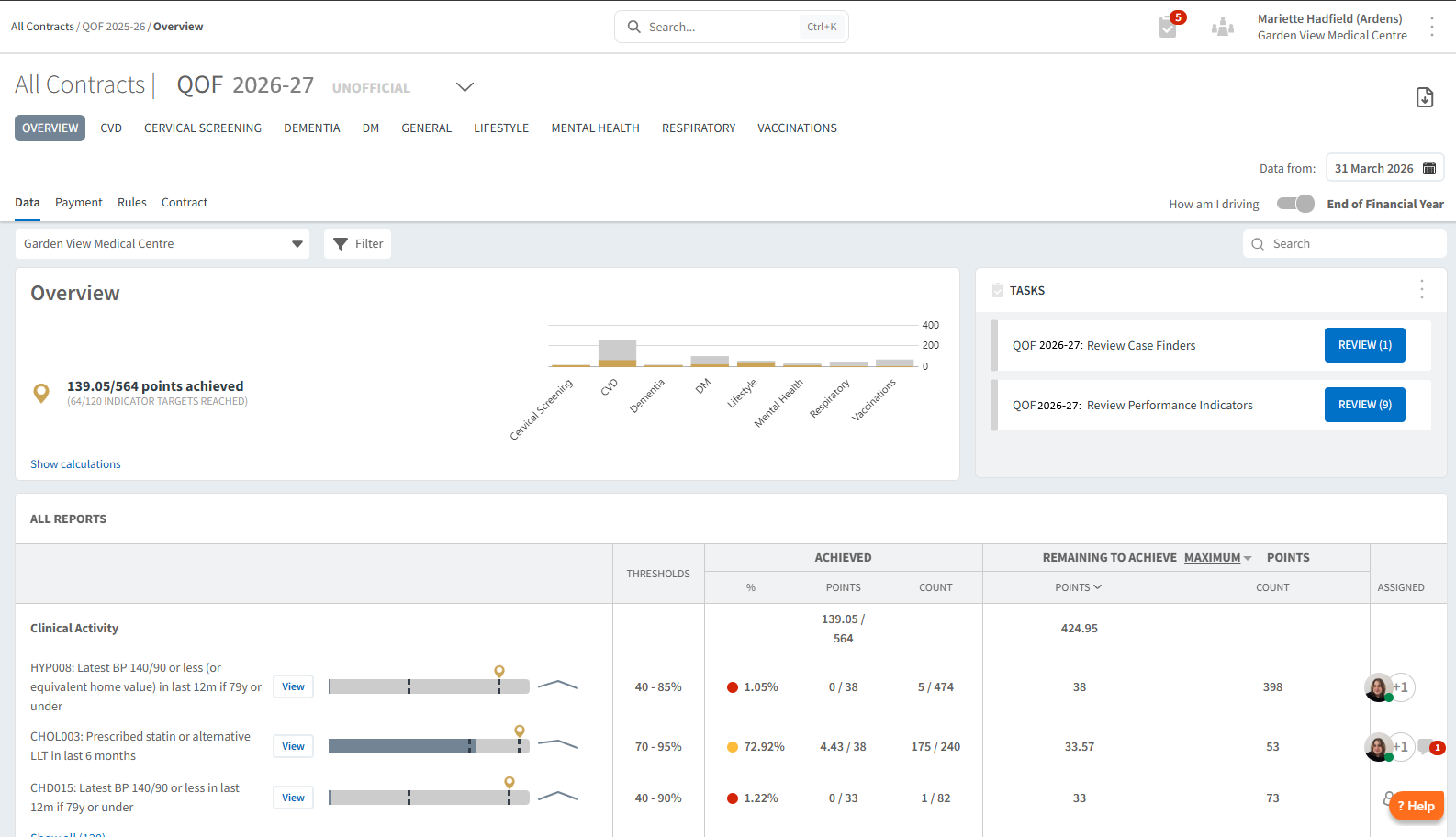
Ardens Manager is a cloud-based analytics tool that helps GP practices, PCNs and ICBs to analyse primary care needs and activities. The QOF Dashboard provides useful insights into QOF performance, including points and threshold achievements.
For existing Ardens Manager customers, explore our range of support articles to ensure you are getting the most of the dashboard.
For those new to Ardens Manager,
sign up for a free 1-month trial.
FAQ
What is the difference between Case Finder and Register reports?
Case Finder reports identify patients who may have a condition but are not correctly coded. Register reports provide a summary of patients currently recorded on condition registers.
How should I use the Outstanding and Time Sensitive reports?
Outstanding reports help monitor progress and identify gaps in activity, while Time Sensitive reports highlight actions that must be completed within strict deadlines to count towards QOF.
Additional Learning
If you require any further assistance on the process above, please contact Ardens support on:
support-emis@ardens.org.uk